Smart Remote: Universal TV
Shadow softLibraries & Demo
4.496.00 Reviews
- Version
- 18.0.0
- Installs
- 10.00K
- Age Rating
- Everyone
Screenshots
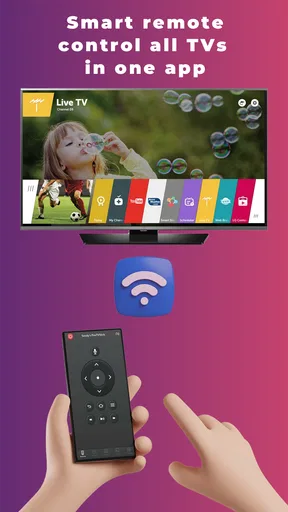
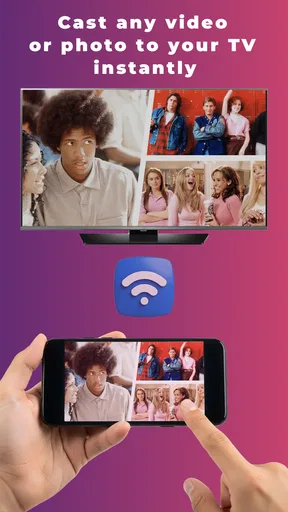
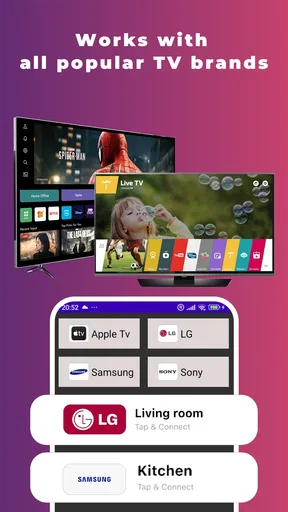
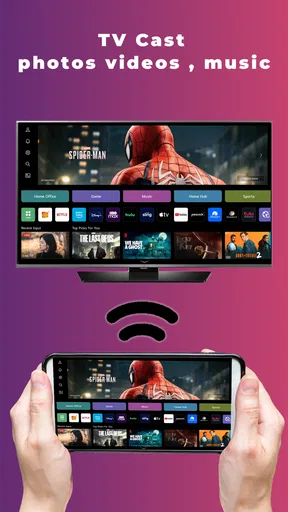
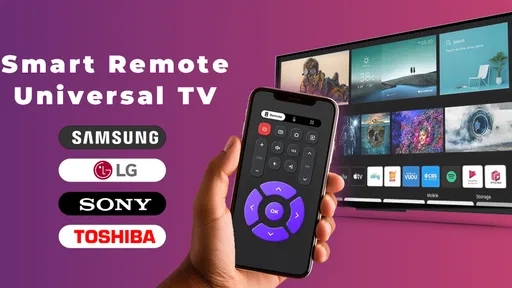
Our Review of Smart Remote: Universal TV
 Analysis by Appyee
I approached Smart Remote: Universal TV as a practical remote-control utility rather than as a showcase app. Its purpose is straightforward: help you control compatible smart televisions, cast content, and mirror a phone screen from one place. That sounds simple, but remote apps live or die by small details—how quickly the TV is found, whether the controls are easy to understand, and whether the app gives me enough visibility into what it is doing.
My overall impression is positive, with an important qualification: this is most useful when you want one convenient control point for several television-related tasks, not when you expect it to replace every feature of a physical remote or every dedicated TV brand application. Shadow soft has positioned it in the Libraries & Demo section, and the app is free with an Everyone age rating. That makes it easy to try, but I would still take a moment to review the prompts and choices shown during setup before relying on it regularly.
The app has an average rating of 4.4 from around 500 ratings, with more than 10K installs. Those figures suggest that it has found a real audience, although they are not a guarantee that it will work equally well with every television, network arrangement, or phone. Compatibility is the first practical question to settle. If your TV and phone do not communicate properly, no amount of extra casting or mirroring controls will make the experience feel smooth.
How the remote experience feels in everyday use
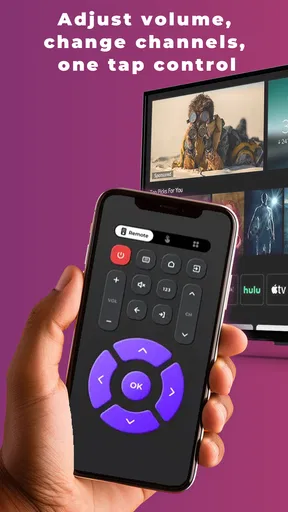
The most convincing use case is a familiar one: I am sitting down to watch something, the physical remote is buried between cushions, and I already have my phone in hand. Instead of searching the room, I can open the app and use the phone as a replacement control. That is especially handy for basic actions such as navigating menus, changing channels, adjusting volume, or moving through an on-screen keyboard.
A second scenario is useful in a shared home. One person may prefer the physical remote, while another wants to use a phone for quick searches or playback controls. A phone-based remote can be easier to keep nearby than a small handset that disappears regularly. The trade-off is that the phone must remain available, unlocked when needed, and connected in a way the television accepts. A physical remote is still faster when the phone battery is low or the device is being used for something else.
The casting and mirroring angle gives the app a wider role than a simple button replacement. Casting is generally better when I want to send selected media to the TV while continuing to use the phone for other things. Mirroring is more suitable for showing the phone screen itself, such as a photo, a document, or an app that does not offer its own casting option. Knowing that difference prevents a common frustration: expecting mirroring to behave like a private, uninterrupted video stream.
I would treat mirroring as a presentation tool, not automatically as the best way to watch fast-moving video. Phone notifications, screen orientation changes, and the phone’s own activity can become visible on the television. For a family photo or a quick demonstration, that may be exactly what I need. For a long film session, the TV’s native app or a dedicated casting method is usually the cleaner choice.
Setup is where expectations should stay realistic
The first launch matters more than the feature list. I would keep the phone and television on the same home network when the app asks me to look for a device, then wait for the TV to appear before assuming something is broken. If the television is sleeping, disconnected, or using a different network path, discovery may fail even though both devices are in the same room.
One useful habit is to test the basic remote controls before trying to mirror a full screen. If volume and navigation respond, I have evidence that the connection is working. If they do not, switching between casting and mirroring repeatedly is unlikely to solve the underlying problem. I would first check the TV’s network state, wake it fully, and confirm that the phone is not using a guest network or another connection isolated from household devices.
This is also the point where user choice and trust meet. I pay attention to every permission prompt, pairing request, and system message instead of tapping through automatically. A remote app needs a clear path to communicate with a television, but the exact access requested can vary by phone and operating system. The safest approach is to grant only what the app visibly explains and to revisit those choices later if I stop using casting or mirroring.
Controls that matter more than novelty
A remote application succeeds through responsiveness, not decoration. I value a layout that lets me reach the directional pad, volume, back command, home command, and playback controls without hunting through several screens. On a phone, thumb placement also matters: controls near the lower portion of the display are easier to use one-handed, while a crowded layout can cause accidental taps.
The app’s combined purpose can be convenient, but it can also create a little friction. A user who only wants volume and navigation may not care about mirroring menus. Someone who installs it specifically to share a phone screen may find the remote portion secondary. I would decide which task I perform most often and judge the interface by how quickly it gets me there, rather than assuming that having more functions automatically means a better experience.
There is another practical distinction between controlling a TV and controlling every device attached to it. A universal phone remote may be useful for the television itself, but a soundbar, streaming box, game console, or set-top box can follow different control standards. I would not expect one app to replace the separate remotes for an entire entertainment system unless the setup clearly supports those devices. This is one situation where the original manufacturer’s application or a dedicated hardware remote may be a better match.
Trust, permissions, and visible choices
For an app that interacts with a television and a home network, I care about more than whether the buttons work. I want the connection process to be understandable, the app to avoid surprising me with unrelated requests, and the controls for stopping a session to be easy to find. The developer is Shadow soft, and the current version is 18.0.0, so I would still review the app’s current screens and system prompts on my own device rather than treating the version number as a promise about behavior.
I do not regard a free price as a reason to skip normal privacy checks. Before using casting or mirroring, I would read the permission wording presented by the phone and consider whether the requested access makes sense for the action I am starting. If the app presents a choice between allowing access while in use and allowing broader access, I would choose the narrower option when it is sufficient. I would also avoid granting access simply because a prompt appears during setup.
Data-sensitive moments are easy to overlook during mirroring. Once the phone screen is on the TV, incoming messages, account details, passwords, photos, and notification previews may become visible to anyone watching. I would turn on a suitable do-not-disturb mode, close private apps, and check the screen before beginning. This is not an accusation about the app; it is a sensible precaution whenever a phone display is being shared with a larger audience.
I would use the same caution with photos and personal media. A quick demonstration can turn into an accidental display of the next item in a gallery or a notification banner. If I only need to show one item, casting a specific piece of content is preferable to mirroring the entire phone. That choice gives me more control over what appears on the television and reduces the chance of exposing something unrelated.
Stopping a session should be part of the routine, not an afterthought. When I finish casting or mirroring, I would use the visible stop or disconnect control, then confirm that the TV has returned to its normal state. If I am using a shared television, I would also close the remote app or remove the selected device from view when appropriate. This helps prevent the next person from accidentally receiving commands from my phone.
Where user agency makes the difference
The best way to use this app is deliberately. I would begin with the least sensitive task—basic TV control—before moving to casting or mirroring. That sequence lets me understand the connection behavior without immediately placing private phone content on a large screen. It also makes troubleshooting easier because I am changing one part of the setup at a time.
I would keep an eye on which TV is selected if there is more than one compatible device nearby. A universal remote is convenient in a home with several screens, but convenience can become confusion when names are similar. Giving televisions clear names in the TV’s own settings, if that option is available, can make selection safer. I would always glance at the chosen device before pressing play, changing volume, or starting a mirror session.
Another useful workflow is to separate household control from guest demonstrations. For daily use, I might keep the app focused on the television I use most. When showing a photo or presentation to visitors, I would connect only for that session, avoid opening unrelated apps, and disconnect immediately afterward. This reduces accidental commands and keeps the purpose of each session clear.
People often ask whether a phone remote works without internet access. The important distinction is between the wider internet and the local home network. Control, casting, or mirroring may depend on local communication between the phone and TV, so an internet connection alone does not guarantee success, and a temporary internet outage does not necessarily explain every failure. I would focus first on whether both devices can see each other on the same network and whether the TV is awake and ready.
Another common question is whether the app is suitable for children. The Everyone rating makes it broadly appropriate from an age-classification perspective, but I would still supervise mirroring in a family setting. The concern is less about ordinary remote buttons and more about what can appear on the phone screen, including personal conversations or purchases. A child using it should understand that the phone display may be shown publicly.
Users also wonder whether they should choose this over a TV manufacturer’s remote app. I would choose the manufacturer’s option when I want brand-specific settings, account integration, input management, or the deepest access to that TV’s functions. I would choose this app when I want a simpler, more general tool that brings remote control, casting, and mirroring into one place. The universal approach is convenient, but it may not expose every specialized command available in an official companion app.
There is a similar trade-off with hardware universal remotes. A physical universal remote is better for people who want instant access without unlocking a phone, who frequently control several devices, or who dislike holding a phone while watching television. This app is better for someone who already keeps a phone nearby and values the ability to share the phone screen. Neither option wins in every living room.
Who will get the most from it
I think the app is a good fit for households that regularly misplace the physical remote, people who want a phone-based way to navigate a smart TV, and users who occasionally need to display phone content on a larger screen. It can also suit someone who prefers trying a free utility before buying extra hardware. The low barrier to installation makes experimentation easy, while the broad age classification keeps it approachable for a family audience.
I would be more cautious if my television setup is complicated or depends heavily on equipment from several brands. In that case, a dedicated remote, the TV maker’s application, or a purpose-built home-control solution may offer more predictable coverage. I would also skip it as my primary option if I need a remote that works while my phone is unavailable, since a phone-based control method naturally depends on the phone being charged, accessible, and connected.
The app is not a substitute for good network habits. If the home Wi-Fi is unstable, devices are isolated from one another, or the TV frequently disappears from the network, the experience may feel unreliable even when the app itself is functioning normally. I would test it in the exact room and network where I plan to use it, rather than judging it from a brief trial beside the router.
My cautious verdict after weighing convenience against control
Smart Remote: Universal TV makes sense when I want a single phone utility for television control, casting, and mirroring. Its strongest quality is practical consolidation: instead of switching between a lost remote and separate methods for sharing content, I can start with one app and see whether it fits my setup. The free price and Everyone rating make that trial uncomplicated, and the existing user response gives it a credible starting point.
My recommendation comes with a clear boundary. I would use it for everyday convenience, but I would not hand over permissions without reading the choices, and I would not mirror a private phone screen casually. I would test basic control first, use casting instead of full mirroring when I want tighter content control, and disconnect when finished. The real measure of this app is not how many functions it lists, but how much control it gives me over the connection and what appears on the TV.
For a simple smart-TV setup, it is worth trying. For a demanding multi-device entertainment system, the official TV app or a physical universal remote may be the more dependable answer. In my view, this is a useful free remote companion when I approach it as a convenience tool, keep my privacy choices deliberate, and accept that compatibility and network conditions matter as much as the app’s interface.
Verdict
Strengths of Smart Remote: Universal TV
- Works with many popular TV brands and models.
- Quick pairing makes setup simple for most users.
- Includes essential controls like volume, channels, and input.
- Useful backup when the physical remote is missing.
- Clean layout makes everyday navigation easy.
Limitations of Smart Remote: Universal TV
- Requires an IR blaster or compatible smart TV connection.
- Some features may be limited behind ads or in-app purchases.
- Compatibility can vary between older and newer TV models.
- Wi-Fi pairing may fail if the phone and TV use different networks.
- Not all advanced TV buttons are available in the app.
Other Releases by Shadow soft
View All
Air Play: Cast to TV
Libraries & Demo2.7

Endoscope Camera / USB OTG
Libraries & Demo3.5
Similar Picks in This Category
View All
PGT: GFX, Launcher & Optimizer
Trilokia Inc.4.5

AusweisApp Bund
Governikus Service GmbH3.7

Cardboard
Google LLC3.2

Gamers GLTool with Game Tuner
Trilokia Inc.4.5

Multi Web Chat - Read Secretly
World Scan & Cleaner3.8

App Cloner Premium & Add-ons
App Listo1.9
Frequently Asked Questions
What is Smart Remote: Universal TV, and how does it work?
Smart Remote: Universal TV is a mobile remote-control app designed to operate compatible televisions and, in some cases, other home entertainment devices. After installing it, you typically select your TV brand or allow the app to search for devices on the same Wi-Fi network. Depending on your television model, control may be handled through Wi-Fi or the phone’s infrared hardware, so compatibility can vary.
Is Smart Remote: Universal TV compatible with every television?
No, the app should not be considered universally compatible with every TV. Its performance depends on the television brand, model, operating system, and available connection method. Smart TVs connected to the same Wi-Fi network are generally the easiest to pair, while older televisions may require an Android phone with an infrared blaster. Checking the supported-device information before downloading is recommended.
Does Smart Remote: Universal TV require Wi-Fi, Bluetooth, or infrared?
The connection method depends on both your phone and television. For network-based control, your smartphone and TV normally need to be connected to the same Wi-Fi network. Bluetooth is not necessarily available for every model, and traditional infrared control requires a phone equipped with an IR blaster. If your phone lacks infrared and your TV is not network-enabled, the app may not work.
Is Smart Remote: Universal TV free to download and use?
The application may be available as a free download, but some functions can be limited by advertisements, premium subscriptions, or in-app purchases. Basic remote features may be accessible without payment, while advanced options or an ad-free experience could require an upgrade. Before confirming a purchase, review the app-store listing carefully for pricing, trial terms, and subscription renewal details.
What should I do if the app cannot find or control my TV?
First, confirm that the phone and television are connected to the same Wi-Fi network and that the TV is switched on. Restarting both devices, disabling a VPN, and reopening the app can also resolve pairing problems. If you are using infrared, point the phone directly toward the TV and verify that it has an IR blaster. Finally, check compatibility and update the app if necessary.
